SEO & Lead Generation
  Google Adwords Management
 Social Media Management
 Ecommerce Marketing
 WordPress & Shopify Services
 Website & App Designing
  Website Speed Optimization
  Website Hosting Services
  Amazon PPC Marketing
  Landing Page Designing
 Logo Designing Services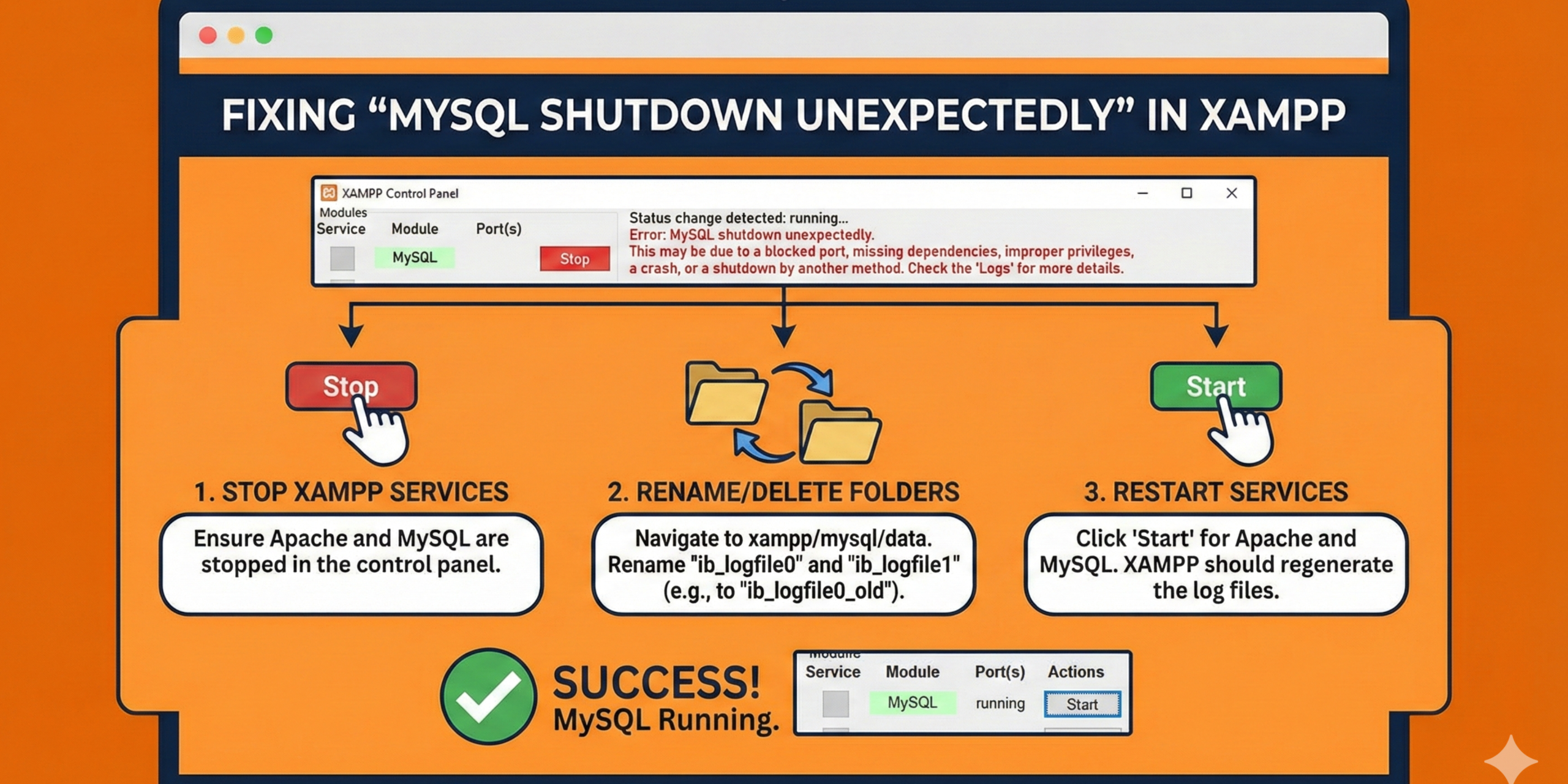

 ×
×

There are few things more anxiety-inducing for a developer than opening the XAMPP Control Panel, clicking “Start” on MySQL, and watching the status indicator turn green for a split second before snapping back to red. Then, the dreaded error message appears in the log window: “Error: MySQL shutdown unexpectedly.”
This usually happens at the worst possible time—often when you are rushing to meet a deadline or trying to demo a local WordPress site to a client. The error message is vague, suggesting that the issue could be anything from a blocked port to missing dependencies or a complete crash. It leaves many beginners scrambling to reinstall the entire software suite, often deleting their precious databases in the process.
The good news is that you rarely need to reinstall XAMPP from scratch. This error is almost always caused by one of two things: a port conflict with another program or a corrupted database file caused by an improper shutdown. In this guide, we will walk you through exactly how to diagnose the problem and fix it without losing your hard work.
Before diving into the fixes, it’s important to understand what is actually happening behind the scenes.
When you click Start, XAMPP attempts to launch the MySQL daemon (a background service) and bind it to a specific network port—usually port 3306.
If MySQL shuts down unexpectedly, it means the process tried to start but encountered a fatal barrier that forced it to stop immediately. The XAMPP Control Panel log usually provides clues, such as:
Understanding these messages is critical. Otherwise, you might waste time fixing a port issue when the real problem is data corruption.
MySQL requires exclusive access to port 3306. If another application is already using this port, XAMPP cannot bind to it and MySQL will crash instantly.
Common offenders include:
If your system previously crashed, lost power, or XAMPP was force-closed via Task Manager, your database files may have become corrupted.
How it happens:
Sometimes XAMPP shows MySQL as stopped, but a hidden mysqld.exe process is still running in the background.
What goes wrong:
If you recently edited the my.ini file to adjust buffer sizes, memory limits, or upload settings, even a single typo can prevent MySQL from starting.
Typical issues include:
If XAMPP is installed inside C:\Program Files, Windows security restrictions may block MySQL from writing required files.
Why this matters:
Recommended installation path:
C:\xampp
To save you time, the table below helps you quickly identify XAMPP MySQL errors, understand their root cause, and decide how urgent the fix is. Match the first error message in your MySQL log with the likely cause and severity.
| Error Log Message | Likely Cause | Severity |
| “Port 3306 is in use by…” | Port conflict. Another application such as Skype, VMware, Docker, or a standalone MySQL service is already using port 3306. | Low (Easy fix) |
| “InnoDB: Operating system error…” | Data corruption. Database files (especially ibdata1) are damaged due to power failure, system crash, or forced shutdown. | High (Handle with care) |
| “Access is denied” | Permission issue. XAMPP is not running as Administrator or is installed in a protected directory like C:\Program Files. | Low (Easy fix) |
| “Attempting to start MySQL app…” | Zombie process. A stuck mysqld.exe process is still running in the background. | Low (Easy fix) |
| “MySQL shutdown unexpectedly” | Generic startup failure caused by configuration errors, missing dependencies, or multiple issues at once. | Medium |
| “Can’t open the mysql.plugin table” | Corrupted or missing system tables due to incomplete installation or damaged MySQL data directory. | High |
| “InnoDB: Unable to lock ./ibdata1” | File lock conflict caused by another MySQL instance already accessing the same data files. | Medium |
| “Fatal error: Can’t open and lock privilege tables” | System database corruption or incorrect MySQL data path configuration. | High |
| “Bind on TCP/IP port failed” | Incorrect port configuration or firewall blocking MySQL’s assigned port. | Medium |
The most frequent culprit for this error is that another application has claimed port 3306 before XAMPP could get to it. Programs like Skype, VMWare, and even Windows Internet Information Services (IIS) are notorious for this. If the port is occupied, MySQL has nowhere to listen for requests, so it shuts down.
The easiest way to solve this is not to fight the other applications, but simply to move MySQL to a different port, such as 3307 or 3308. You can do this by editing the configuration file directly from the XAMPP Control Panel.
Click the Config button next to MySQL and select my.ini. This will open a text file in Notepad. You need to use the “Find” feature (Ctrl+F) to search for “3306”. You will typically find it in two places: once under the [client] section and once under the [mysqld] section. Change both values to 3307. Save the file, close Notepad, and try starting MySQL again. If it turns green, you are back in business. Just remember that your local websites will now need to connect to localhost:3307 instead of the standard localhost.
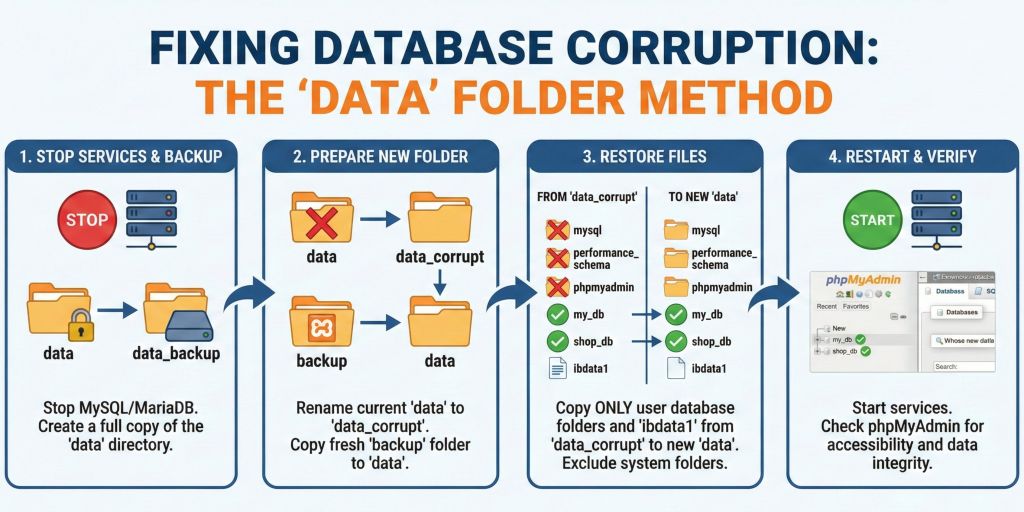
If changing the port didn’t work, or if your logs mention “InnoDB” errors, you are likely dealing with data corruption. This usually happens if XAMPP was closed forcefully—for example, if your computer crashed, lost power, or if you killed the XAMPP task instead of clicking “Stop” gracefully. When this happens, the MySQL index files get out of sync with the actual data.
Warning: This method involves manipulating your database files. Please follow these steps exactly to ensure you do not lose your actual database tables.
Navigate to your XAMPP installation folder (usually C:\xampp\mysql). You will see a folder named data. This is where all your databases live. Rename this folder to data_old. This effectively creates a safe backup of your broken situation so we can try to fix it without risk.
Create a new, empty folder in that same directory and name it data. Now, look for a folder named backup (it resides in the same mysql directory). XAMPP keeps a pristine, default copy of the MySQL engine files in there. Copy all the contents from the backup folder and paste them into your newly created data folder. At this point, you have a working, but empty, MySQL engine.
Now comes the critical part. You need to move your specific database files from data_old to the new data folder. Open data_old and look for the folders that share the names of your databases (e.g., wordpress_db, my_project). Copy those specific folders and paste them into your new data folder. Do not copy the folders named mysql, performance_schema, or phpmyadmin from the old folder, as the fresh copies from the backup are better.
This is the most important step. In your data_old folder, there is a file named ibdata1. This file contains the global index for the InnoDB engine. Without it, MySQL won’t know how to read the database folders you just copied. Copy the ibdata1 file from data_old and paste it into your new data folder, replacing the one that is currently there.
Once you have replaced that file, go back to the XAMPP Control Panel and click Start. In 90% of corruption cases, MySQL will now start perfectly, and all your databases will be visible and intact.
Sometimes the issue is much simpler: XAMPP thinks MySQL is running when it isn’t, or a previous instance of MySQL failed to close properly and is “hanging” in the background. This creates a conflict where the new instance cannot start because the old, broken instance is still holding onto system resources.
To fix this, you need to open the Windows Task Manager (Ctrl + Shift + Esc) and switch to the “Details” tab. Sort the list alphabetically and scroll down to look for mysqld.exe. If you see one or more instances of this process running even though XAMPP shows MySQL as stopped, you have found the problem.
Right-click on mysqld.exe and select “End Task.” Once you have cleared all stuck processes, restart the XAMPP Control Panel (run it as Administrator to be safe) and try starting the module again.
Knowing how to fix the “MySQL shutdown unexpectedly” error is important, but preventing it altogether is far more effective. In most cases, this error occurs because the MySQL database engine is interrupted while it is actively writing data to disk.
The InnoDB storage engine, which MySQL uses by default, is especially sensitive to improper shutdowns. When the database is forced to stop mid-operation, critical files such as redo logs and system tables can become corrupted, leading to startup failures the next time XAMPP is launched.
The single most important habit you can develop is to stop XAMPP services manually.
Before shutting down your computer or closing the XAMPP Control Panel:
This ensures MySQL has completed all write operations and safely closed its database files.
Shutting down Windows or closing XAMPP without stopping services first greatly increases the risk of InnoDB data corruption. Every forced shutdown is essentially a gamble with your database integrity.
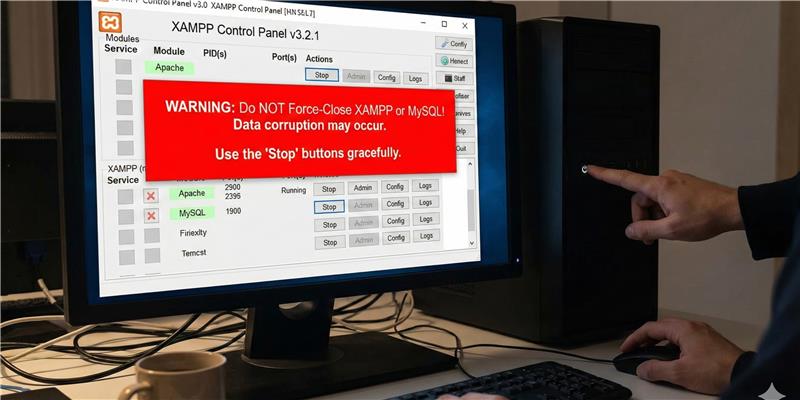
Never close XAMPP using Task Manager unless it is completely unresponsive. Force-closing MySQL interrupts active transactions and can corrupt system files such as ibdata1 and redo logs.
If XAMPP appears frozen, wait a few moments before taking action. In many cases, MySQL is still finalizing disk operations in the background.
Running XAMPP with proper permissions reduces the chance of:
Always launch the XAMPP Control Panel as Administrator, especially on Windows systems.
Outdated versions may contain bugs related to file handling and shutdown processes. Updating XAMPP ensures:
Even with best practices, unexpected power failures can still happen. Regular database backups ensure you can recover quickly if corruption does occur.
Consider:
Think of MySQL like a car engine—you don’t turn it off by cutting the fuel mid-drive. Always let it shut down properly.
By following these preventive steps, you can significantly reduce the chances of encountering MySQL crashes in XAMPP, protect your databases, and maintain a stable local development environment.
The “MySQL shutdown unexpectedly” error is a rite of passage for almost everyone who uses XAMPP for local development. While the red error text looks alarming, it is rarely fatal to your projects. Whether it is a simple port conflict caused by Skype or a more complex data corruption issue caused by a power outage, the file structure of XAMPP allows for recovery if you remain calm and methodical.
By following the steps above—changing the port or rebuilding the data folder—you can get your local environment back up and running in minutes. Just remember that ibdata1 is the heart of your database; treat it with care, and you will rarely lose data.

I am a front-end developer with over 2 years of experience in creating sleek, responsive websites. Currently working at Kleverish Digital Agency, I specialize in leveraging technologies like HTML, CSS, JavaScript, React, and WordPress to craft exceptional user experiences. I’m dedicated to writing clean, efficient code and ensuring seamless functionality across all devices and browsers.



 Rated 4.99/5 overall
across 100+ reviews
Rated 4.99/5 overall
across 100+ reviews