SEO & Lead Generation
  Google Adwords Management
 Social Media Management
 Ecommerce Marketing
 WordPress & Shopify Services
 Website & App Designing
  Website Speed Optimization
  Website Hosting Services
  Amazon PPC Marketing
  Landing Page Designing
 Logo Designing Services

 ×
×

There are few moments more heart-stopping for a developer than clicking “Update” on a WooCommerce plugin and watching the screen go blank. Instead of a successful installation message, you are greeted by the dreaded notification: “There has been a critical error on this website.” In a local development environment like XAMPP, this might manifest differently—perhaps the database server refuses to start, or the site throws a generic “Error Establishing a Database Connection.”
At Kleverish, we frequently see this issue during WooCommerce development, local testing, and live store maintenance.
This interruption is more than just a nuisance; it stops development in its tracks and can lock you out of your administrative dashboard entirely. While the error message is often vague, the underlying causes are usually specific and solvable. Whether you are a student learning on localhost or a developer managing a client site, understanding why these errors happen is the first step toward fixing them permanently.
When WordPress displays the message “There has been a critical error on this website,” it is often referred to by developers as the White Screen of Death (WSoD). While it looks alarming, it is actually a deliberate safety feature.
In older versions of WordPress, a fatal error would simply output raw code, broken HTML, or sensitive server paths directly onto the screen for any visitor to see. This was a massive security risk. Modern WordPress intercepts these fatal PHP errors and replaces them with this generic message to protect your site’s internal structure from being exposed to the public.
However, “Critical Error” is a blanket term. It doesn’t tell you what went wrong; it only tells you that the server could not complete the request. In the context of a WooCommerce update, this usually happens because the delicate chain of dependencies—between your server, the database, and the plugin code—has snapped.
Here is what is typically happening behind the scenes when this error triggers:
Essentially, the “Critical Error” is not the disease itself—it is just the symptom. To fix it, you have to look past this generic screen and find the specific root cause in your server logs.
WooCommerce constantly evolves to utilize newer, faster, and more secure features of the PHP language. Consequently, newer versions of the plugin often drop support for older PHP versions like 7.3 or 7.4. If your server or local XAMPP installation is running an outdated version of PHP, the new plugin code will attempt to use functions that do not exist in your environment. This results in an immediate fatal error. This is particularly common in local environments where users install XAMPP once and forget to update the core components for years.
The update process is memory-intensive. It requires unzipping packages, replacing files, and updating database rows simultaneously. Most default WordPress installations come with a memory limit of 40MB or 64MB, which is insufficient for a heavy e-commerce stack. When the update script hits this ceiling, the server kills the process to preserve resources, leaving the site in a broken, half-updated state.
This is often described as “dependency hell.” You might have a third-party add-on (like a shipping calculator or payment gateway) that relies on specific code within WooCommerce. If an update deprecates or removes that code, the add-on will crash the site when it tries to access the missing function. This is standard behavior in software development, but it can render your dashboard inaccessible if the conflicting plugin is active during the update.
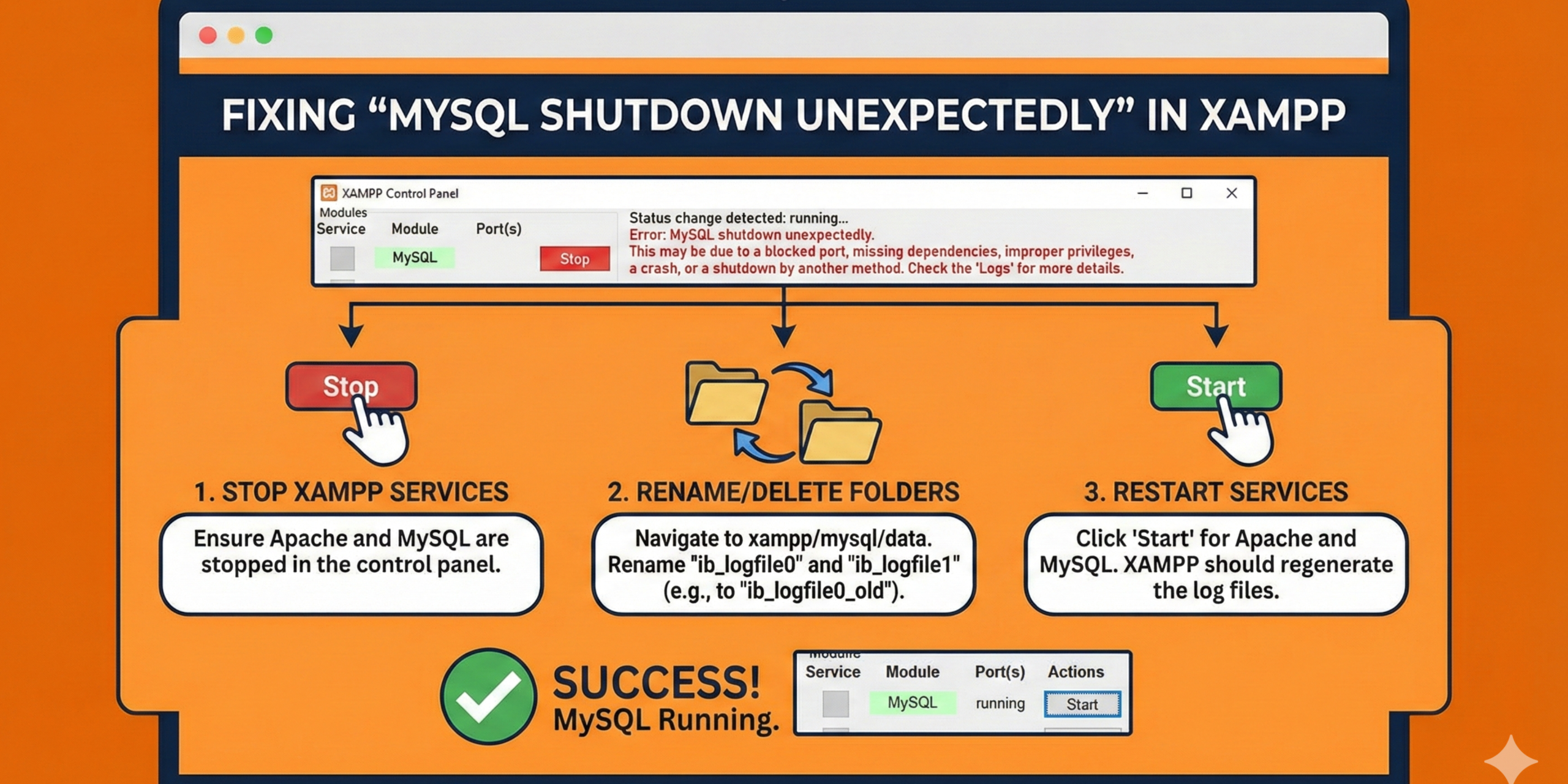
For developers working locally, a critical error might not be a WordPress issue at all, but a server issue. Applications like Skype, Zoom, or VMware frequently occupy port 3306 (MySQL) or port 443 (SSL). If you restart your computer or XAMPP during an update process, MySQL may fail to restart because its required port is hijacked by another program. The result is a persistent database connection error that looks like a critical site failure.
This is a classic issue for XAMPP users. If your computer loses power, crashes, or if you force-quit the XAMPP Control Panel without clicking “Stop” on MySQL first, the database files can become corrupted. Specifically, the ibdata1 file, which acts as the system tablespace for InnoDB engines, can get out of sync with the log files. When you next try to update a plugin, MySQL detects the inconsistency and shuts down immediately to prevent data loss, effectively killing your site.
Web servers require specific permission sets to read and write files. If your wp-content folder or plugin directories are set to “Read Only” (or possess incorrect ownership settings on Linux/Mac), the update script cannot overwrite the old plugin files. This leaves you with a mix of old and new files, causing code mismatches that trigger fatal PHP errors.
Occasionally, an update attempts to flush the permalink structure (the way URLs are rewritten). If this process fails or is interrupted, the .htaccess file can become corrupted with partial instructions. This usually results in a 500 Internal Server Error, making both the front end and the back end of the website inaccessible.
| aa | aa |
| Root Cause | Typical Symptom | Primary Solution |
| PHP Incompatibility | “Critical Error” immediately after update | Upgrade PHP version or roll back plugin |
| Memory Exhaustion | Site loads slowly then crashes | Increase limit in wp-config.php |
| Port Conflict | MySQL module stops instantly in XAMPP | Change port in my.ini to 3307 |
| Database Corruption | “Error Establishing Database Connection” | Restore ibdata1 from backup |
| Permissions | Update fails or “Destination not writable” | Reset folders to 755, files to 644 |
When WordPress or WooCommerce suddenly shows a critical error—especially on a local XAMPP setup—the issue is usually tied to database conflicts, corrupted files, permission problems, or limited server resources. Follow these proven recovery methods carefully to restore your site without data loss.
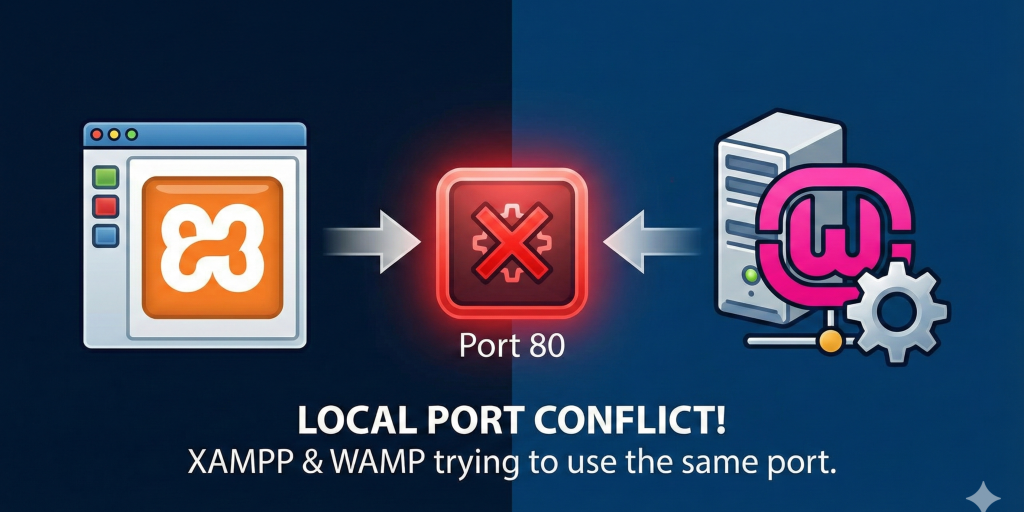
One of the most common XAMPP issues occurs when MySQL fails to start because Port 3306 is already in use. This often happens when another MySQL service or application is running in the background.
Start by opening the XAMPP Control Panel. Click Config next to MySQL and open the my.ini file. Search for every instance of 3306 and replace it with 3307. Save the file and restart MySQL from the control panel.
Next, you must inform WordPress about this port change. Open your wp-config.php file and locate the database host definition:
define( ‘DB_HOST’, ‘localhost’ );
Update it to:
define( ‘DB_HOST’, ‘localhost:3307’ );
This simple change redirects WordPress to the new MySQL port, bypassing the conflict and restoring database connectivity almost instantly.
If your XAMPP logs point to a corrupted ibdata1 file, proceed carefully. A wrong move here can erase your entire database.
First, stop all XAMPP services. Navigate to the following directory:
xampp/mysql/data
Rename the existing data folder to data_old. This acts as your full backup and protects your site data. Now, create a new empty folder named data.
Inside the mysql directory, locate the backup folder. Copy all of its contents into your newly created data folder. This restores the default MySQL system files.
Now comes the most important step. Open the data_old folder and copy only the folders related to your website databases (for example, your WordPress database name). Paste these folders into the new data directory.
Finally, copy the ibdata1 file from data_old and paste it into the new data folder. Restart MySQL using the XAMPP Control Panel.
This method refreshes corrupted MySQL core files while safely preserving your WordPress or WooCommerce data.
Incorrect permissions can silently block WordPress from accessing critical files, leading to update failures and critical errors.
Using FTP (such as FileZilla) or your hosting file manager, navigate to the wp-content directory. The recommended permission settings are:
If you’re working on a local Windows system, right-click the folder, open Properties, and make sure it is not marked as Read-only.
On live servers, right-click the folder in FileZilla, select File Permissions, and confirm the numeric values. Correct permissions ensure WordPress can write, update, and load files properly.
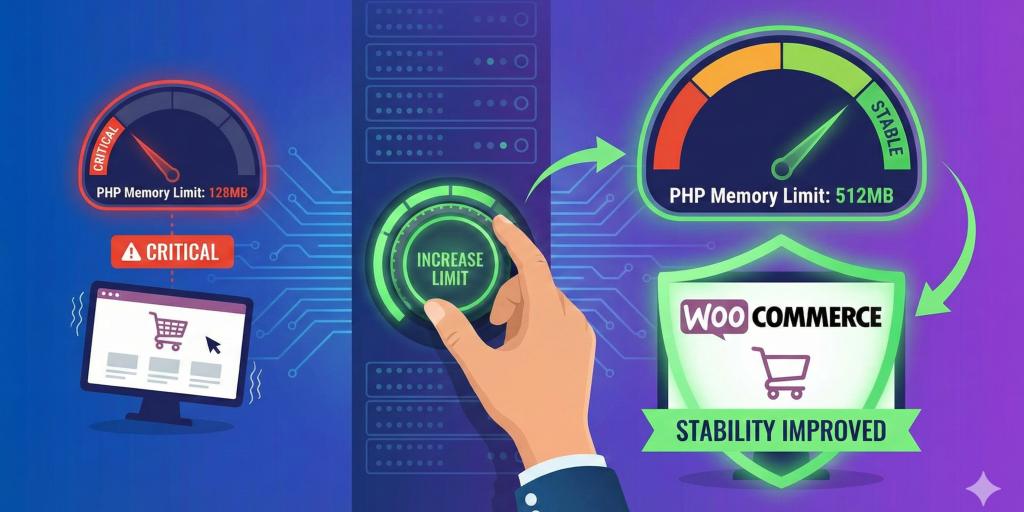
Insufficient PHP memory is a frequent cause of critical errors after WooCommerce updates. Fortunately, this is often the fastest fix.
Open your wp-config.php file and add the following line just before the comment that says “That’s all, stop editing!”:
define( ‘WP_MEMORY_LIMIT’, ‘256M’ );
This explicitly allows WordPress to use up to 256MB of memory, giving resource-heavy plugins like WooCommerce enough room to complete updates without crashing.
When the screen goes white, the truth is hidden in the logs. In a local XAMPP environment, checking logs is straightforward. Open the Control Panel and click the “Logs” button next to Apache. Select error.log. Scroll to the very bottom of the file to see the most recent entries. You are looking for timestamps matching the moment your site crashed.
If you see a “Fatal Error,” the log will tell you exactly which file and line number caused the crash. For example, if it points to a specific plugin like wp-content/plugins/example-plugin/index.php, you know that specific plugin is the culprit. You can then navigate to that folder and rename it (e.g., to example-plugin-off). This forces WordPress to ignore the broken plugin, allowing your site and dashboard to load again so you can troubleshoot further.
Critical errors after a WooCommerce update can feel catastrophic, but they are almost always logical problems with a clear solution. They stem from the complex interaction between your server environment, the database, and the PHP code. By understanding the common causes—like port conflicts in local environments or memory exhaustion on live servers—you can move from panic to problem-solving.
At Kleverish, we handle WooCommerce troubleshooting and recovery by identifying the exact root cause rather than applying risky quick fixes. Always remember that in 99% of cases, your data is safe inside the database; it is just the connection or the display layer that has failed.

My frontend development internship at Kleverish was a great learning experience. I worked on real-world UI components, responsive layouts, and improved my skills in HTML, CSS & JavaScript. The team was very supportive and helped me understand modern frontend techniques like performance optimization and clean code structure.



 Rated 4.99/5 overall
across 100+ reviews
Rated 4.99/5 overall
across 100+ reviews