SEO & Lead Generation
  Google Adwords Management
 Social Media Management
 Ecommerce Marketing
 WordPress & Shopify Services
 Website & App Designing
  Website Speed Optimization
  Website Hosting Services
  Amazon PPC Marketing
  Landing Page Designing
 Logo Designing Services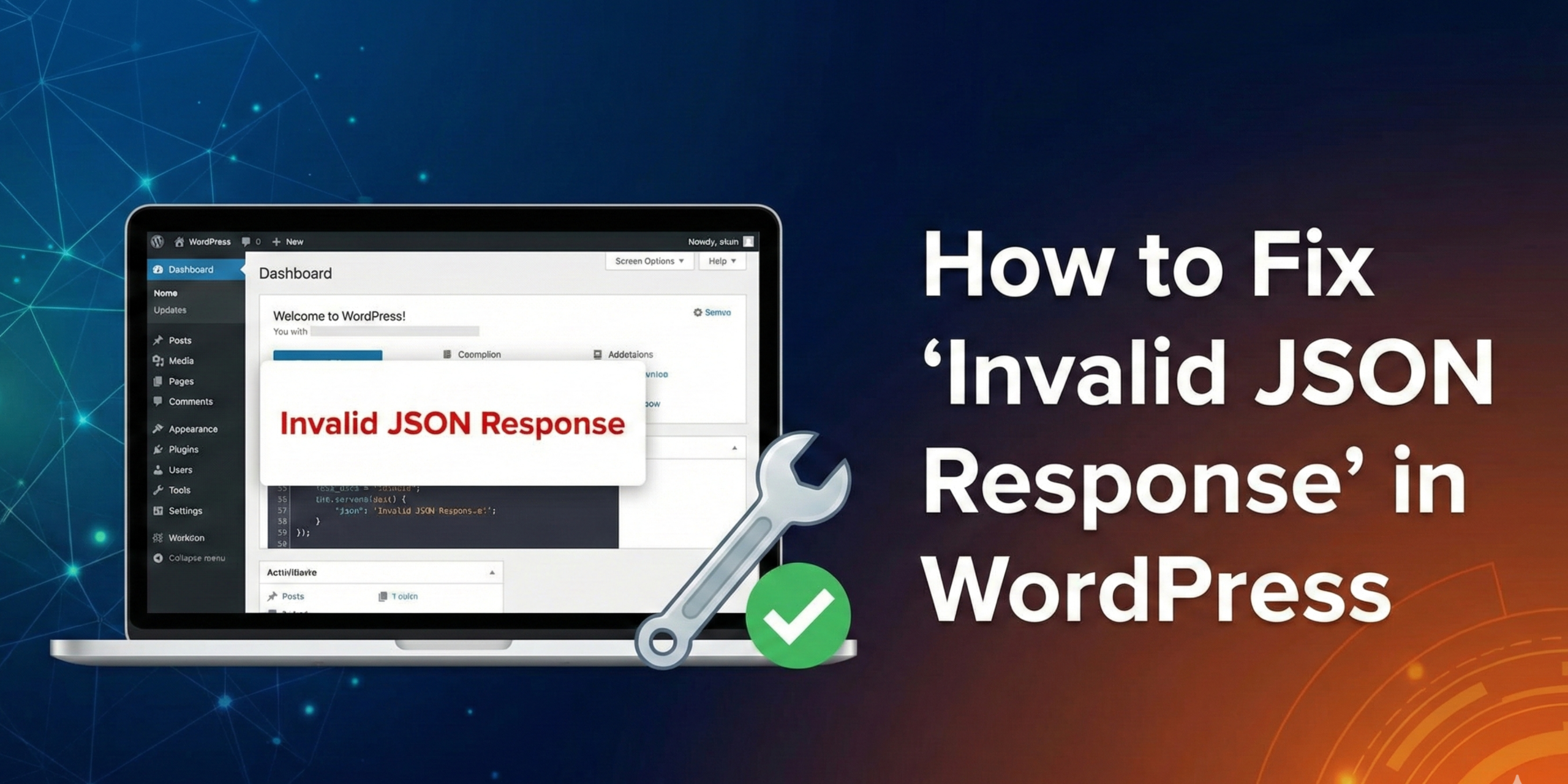

 ×
×

There is a specific kind of panic that sets in when you have just finished writing the perfect article or designing a crucial landing page, and you move to click “Update.” Instead of the satisfying confirmation message, a red banner slides across the top of your screen: “The response is not a valid JSON response.”
In an instant, your work feels trapped. You cannot save, you cannot publish, and you cannot preview your changes. Unlike a “White Screen of Death” where the whole site goes down, your site looks fine to visitors, but the backend—the engine room where you work—has stopped communicating properly.
At Kleverish, we often encounter this issue when auditing client sites or helping developers troubleshoot migration issues. While the error message sounds deeply technical, it is actually a very specific communication breakdown between your browser and your server. It is not usually a sign that your website is “broken” in a fatal way, but rather that a specific line of conversation has been interrupted.
This comprehensive guide will take you far beyond the basic “turn it off and on again” advice. We will explore the architecture of the WordPress Block Editor, understand why this specific error occurs, and walk through a detailed, logical framework to fix it permanently.
To effectively fix the “Invalid JSON Response,” we must first understand what is happening under the hood of your WordPress installation.
In the old days of WordPress (the Classic Editor era), saving a post was a relatively simple HTTP request. You hit “Save,” the browser took all the form data, sent it to the server, the page reloaded, and the server said, “Saved.”
The modern Block Editor (Gutenberg) works differently. It functions more like a standalone application running inside your browser. It does not reload the page every time you type a paragraph or upload an image. Instead, it maintains a constant, quiet conversation with your WordPress database in the background.
This background conversation happens through the WordPress REST API. When you click “Update,” the Block Editor packages your content and sends a request to a specific URL on your site (an API “endpoint”). It expects the server to catch that package, save the data, and reply with a specific confirmation message in a format called JSON (JavaScript Object Notation).
JSON is a lightweight data format that looks like text but is structured in a way machines can easily read. It is the language the Block Editor speaks.
The error “The response is not a valid JSON response” essentially means the editor sent a message expecting a clean JSON reply, but the server sent back something else.
Usually, the server has sent back:
Since the Block Editor is strictly waiting for JSON, receiving a chunk of HTML code or a text warning confuses it. It cannot parse the data, so it displays the “Invalid JSON” error.
Before we start changing settings, it is helpful to look at the context of the error. The timing of the error often points directly to the solution.
| Scenario / Symptom | Likely Culprit | Technical Context |
| New Site / Migration | Permalinks or SSL | The .htaccess file or database URLs do not match the new environment. |
| Saving Long Posts | ModSecurity / Firewall | Security rules are flagging long text or code snippets as malicious SQL injection. |
| Random Occurrence | Plugin Conflict | A plugin is outputting PHP warnings that corrupt the JSON data stream. |
| Image Uploads | Media Library / SSL | Mixed Content errors (HTTP vs HTTPS) are blocking the upload script. |
We always begin troubleshooting with the least invasive methods. These steps solve approximately 70% of “Invalid JSON” cases without requiring you to touch a single line of code.
This is the most common fix because it is the most common point of failure. WordPress relies on “Rewrite Rules” to map nice-looking URLs (like domain.com/my-post) to the database queries that actually fetch the content. The REST API relies heavily on these rules.
If a plugin updates, a theme changes, or the site is moved, these rules can get out of sync. When that happens, the API endpoint the editor is trying to reach effectively vanishes, returning a 404 HTML page instead of JSON.
The Fix:
Navigate to Settings > Permalinks in your dashboard. You do not need to change the structure. simply scroll to the bottom and click Save Changes. This forces WordPress to delete the cached rewrite rules and generate a fresh set, effectively “rebooting” the map your site uses to find URLs.
The modern web is encrypted. If you have an SSL certificate (the padlock icon in the browser), your site should be loading over https://. However, sometimes the internal settings of WordPress are still pointing to the old http:// address.
Browsers act as security guards. If you are on a secure page (HTTPS), the browser will block any background requests that try to go to an insecure (HTTP) URL. This is called a “Mixed Content” block. If the Block Editor tries to save to an http address while you are editing on https, the browser kills the request, and the editor throws the JSON error.
The Fix:
Go to Settings > General. Check the WordPress Address (URL) and Site Address (URL).
If the easy wins didn’t work, we need to stop guessing and start investigating. This is where we act like true developers. You don’t need to be a coding expert to do this, but you do need to use a browser tool.
This method allows you to see exactly what the server is telling the editor, revealing the true face of the error.
What to look for:
This step is critical. If the response says “403 Forbidden,” you can stop looking at themes and start looking at your security plugin. It narrows the search field massively.

One of the trickiest causes of the “Invalid JSON Response” is an over-aggressive firewall. This is particularly common if the error only happens when you try to save a post that contains specific content, like code snippets, iframe embeds, or certain keywords.
Security plugins like Wordfence, iThemes Security, or server-level firewalls (like ModSecurity or Cloudflare) scan every request sent to the server. If the Block Editor sends a “save” request that contains something the firewall thinks looks suspicious—like an SQL command or a script tag—it blocks the request immediately.
When the firewall blocks the request, it doesn’t send a polite JSON note; it slams the door and sends an HTML “Access Denied” page. The editor receives this page, can’t read it, and displays the JSON error.
How to Fix:
If your network investigation revealed a “500 Internal Server Error” or if you see strange text inside the Response tab, you likely have a software conflict.
WordPress is an ecosystem of thousands of independent developers. Sometimes, Plugin A and Plugin B just don’t get along, or your Theme is trying to hook into the save process and failing.
Rather than deactivating plugins randomly, we recommend a systematic approach.
Pro Tip: If you cannot deactivate plugins on your live site because it is high-traffic, use a “Staging Site.” Most hosting providers (like WP Engine, SiteGround, or Kleverish managed hosting) allow you to create a clone of your site with one click. You can break things on the staging site without affecting your real visitors.
The .htaccess file is the traffic controller of your server. It lives in the root directory of your WordPress installation. Sometimes, this file becomes corrupted, or plugins add contradictory rules to it that break the REST API.
If refreshing your permalinks (Step 3) didn’t work, you might need to manually regenerate this file.
Step-by-Step Recovery:
WordPress will verify that the file is missing and create a fresh, perfectly clean one with the default rules. This clears out any garbage code that might have been blocking the JSON signals.

If you are still stuck, we need to ask WordPress to tell us exactly what is wrong. By default, WordPress hides system errors to keep your site looking professional. We need to turn those errors back on.
This involves editing the wp-config.php file. This is a delicate file, so proceed with care or ask a Kleverish expert for assistance.
PHP
define( ‘WP_DEBUG’, true );
define( ‘WP_DEBUG_LOG’, true );
define( ‘WP_DEBUG_DISPLAY’, false );
What this does:
It tells WordPress to start tracking errors (WP_DEBUG), but instead of displaying them on the screen where visitors can see them (WP_DEBUG_DISPLAY), it saves them to a secret file (WP_DEBUG_LOG).
After adding this code, try to save your post again to trigger the error. Then, go back to your FTP and look inside the wp-content folder. You will find a file named debug.log. Open it.
You might see an error like:
PHP Fatal error: Uncaught Error: Call to undefined function… in /wp-content/plugins/bad-plugin/file.php
This log gives you the exact file path and line number of the error. It is the smoking gun that tells you exactly which plugin or theme file is breaking the JSON response.
Once you have successfully fixed the “Invalid JSON Response,” the goal shifts to stability. You want to ensure this interruption doesn’t return to break your workflow again. At Kleverish, we believe in proactive maintenance; a stable WordPress site isn’t just about fixing what’s broken, but creating an environment where errors are less likely to occur in the first place.
Here are the key strategies to fortify your site against future REST API conflicts:
WordPress runs on PHP. Using an ancient version of PHP (like 7.2 or older) is a security risk and causes significant compatibility issues. Modern themes and plugins often use code syntax that old PHP versions simply cannot understand, resulting in “syntax errors” that break the REST API silently.
The “Rewrite Rules” that power your permalinks are fragile. Avoid changing your permalink structure (e.g., from “Day and name” to “Post name”) unnecessarily. Every time you change this structure, WordPress has to rewrite the map it uses to find content. If this process is interrupted or cached improperly, the API endpoints will vanish.
Before installing a new plugin, check its “Last Updated” date in the WordPress repository. If a plugin hasn’t been updated in two years, it is likely “abandoned.” Abandoned plugins are not tested against the latest versions of WordPress or the REST API. They are the most common source of the unexpected PHP warnings that trigger JSON errors.
Many security plugins offer “hardening” features that allow you to disable the REST API for non-logged-in users or restrict XML-RPC. While this sounds secure, it can backfire. If your security settings are too aggressive, they might block the editor’s “heartbeat” or autosave requests.
WordPress has a built-in doctor that is often ignored. The Site Health tool runs background checks on your REST API status automatically. It will often warn you about an issue before it becomes a blocking error.
Caching plugins make your site faster, but they can also serve “stale” data to the editor. If your Object Cache (Redis or Memcached) holds onto an old version of your user permissions, the API might reject your request because it thinks you are not logged in or lack the authorization to edit.
The “Invalid JSON Response” is one of the more intimidating errors in WordPress because it feels like a wall has been put up between you and your content. However, as we have explored, it is almost always a configuration issue—a crossed wire between the browser and the server.
Whether it is a simple permalink glitch, a mixed content warning, or an over-zealous security firewall, the solution is reachable through logical troubleshooting. You do not need to delete your site and start over. By systematically checking the URL settings, testing plugins, and using browser developer tools, you can pinpoint the blockage and clear the path.
At Kleverish, we encourage you to view these errors not as disasters, but as clues. They are the system telling you that something in the configuration needs a tune-up. Follow the steps, take a backup before you begin, and you will have that green “Published” notification back in no time.
Use this summary to track your troubleshooting progress:

Working as a Frontend Developer at Kleverish has been an enriching and valuable experience. I have worked on real-world UI components, responsive layouts, and strengthened my skills in HTML, CSS, and JavaScript. The team has been incredibly supportive, helping me dive deeper into modern frontend practices such as performance optimization, clean code architecture, and improved development workflows. My role at Kleverish has significantly enhanced my technical expertise and overall understanding of professional frontend development.



 Rated 4.99/5 overall
across 100+ reviews
Rated 4.99/5 overall
across 100+ reviews