SEO & Lead Generation
  Google Adwords Management
 Social Media Management
 Ecommerce Marketing
 WordPress & Shopify Services
 Website & App Designing
  Website Speed Optimization
  Website Hosting Services
  Amazon PPC Marketing
  Landing Page Designing
 Logo Designing Services

 ×
×

There are few things more anxiety-inducing for a website owner than typing in your URL, hitting enter, and being greeted by a stark white screen or a browser message declaring a “500 Internal Server Error.” Unlike other errors that tell you exactly what is wrong—like a “404 Not Found” which simply means a page is missing—the 500 error is frustratingly vague. It essentially means the server encountered an unexpected condition that prevented it from fulfilling the request, but it cannot specify exactly what that condition is.
At Kleverish, we understand that for developers and business owners alike, this ambiguity is the hardest part. You are left wondering if your site has been hacked, if a plugin failed, or if your hosting provider is down. The good news is that this error is rarely permanent and almost always fixable. It is usually caused by a conflict in the site’s code or a resource limit being reached. By methodically isolating the variables, you can identify the culprit and restore your site to full health.
Before diving into the fixes, it helps to understand what is happening behind the scenes. When you visit a WordPress site, your browser sends a request to the server where the site is hosted. The server processes this request using PHP and sends back the HTML code to your browser. A 500 error occurs when something goes wrong during that processing phase, causing the server to throw its hands up and stop.
This error is strictly “server-side,” meaning the problem is not with your computer or internet connection, but within the website’s files or server configuration. In the extensive troubleshooting we do at Kleverish, the most common triggers we see are corrupted .htaccess files, exhausted PHP memory limits, or poorly coded third-party plugins.
To help you visualize the scope of the problem, here is a breakdown of the error’s profile:
| Common Cause | Typical Symptom | Recommended Fix Strategy |
| Corrupted .htaccess File | The site is down, but the admin dashboard might still work (or vice versa). | Regenerate the file by resetting Permalinks or manually uploading a fresh version. |
| PHP Memory Exhaustion | Error appears only when performing intensive tasks (e.g., uploading images). | Increase the memory limit in the wp-config.php file. |
| Plugin Conflict | The error appeared immediately after installing or updating a plugin. | Deactivate all plugins via FTP and re-enable them one by one. |
| Corrupted Core Files | The error persists despite all other troubleshooting attempts. | Re-upload fresh wp-admin and wp-includes folders. |
Before you change any code or delete any files, you must prioritize data safety. Troubleshooting a server error often involves editing core configuration files, disabling plugins, or modifying database settings. If a mistake is made during this process, you could accidentally break the site further, introduce new errors, or permanently lose important data.
The most critical step is to create a full backup of your WordPress site before proceeding with any fixes.
By securing your data and following these precautionary steps, you reduce the risk of further damage and ensure you can safely restore your WordPress site if anything goes wrong during troubleshooting.
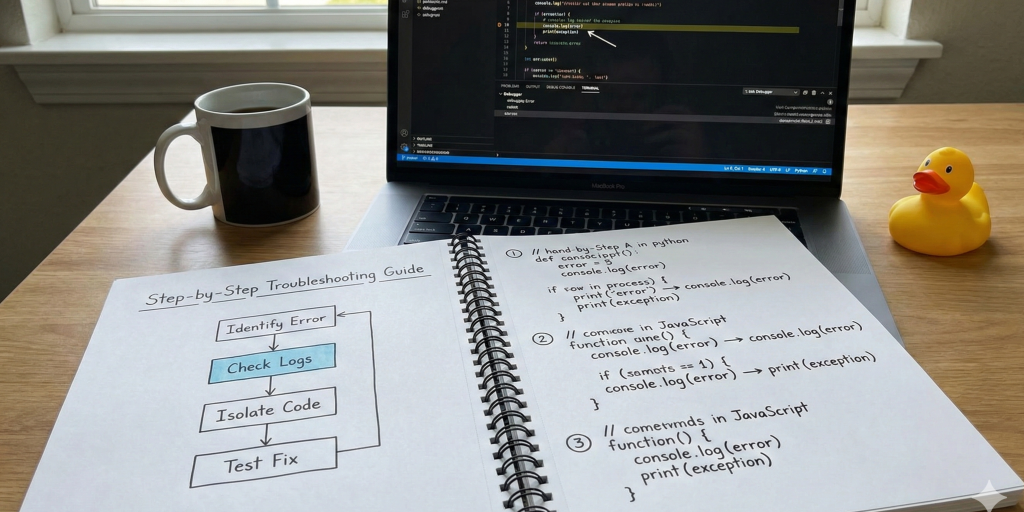
The most effective way to fix a 500 error is to work through the most likely causes one by one, starting with the easiest solutions.
Since the 500 error is generic, you can force WordPress to tell you exactly what is going wrong by enabling the debug mode. This doesn’t fix the error, but it often reveals the hidden message causing it. To do this, you will need to access your site files using an FTP client (like FileZilla) or the File Manager in your hosting dashboard.
Locate the wp-config.php file in your site’s root directory. Inside this file, look for the line that says define( ‘WP_DEBUG’, false );. You need to change the word “false” to “true”. If this line does not exist, you can copy and paste the following code snippet just above the line that says “That’s all, stop editing”:
PHP
define( ‘WP_DEBUG’, true );
define( ‘WP_DEBUG_LOG’, true );
define( ‘WP_DEBUG_DISPLAY’, false );
This configuration tells WordPress to log all errors to a file named debug.log inside the wp-content folder. Open that log file, and you might see a specific error pointing to a plugin or a specific line of code. This clue can save you hours of guessing.
If debugging didn’t give you a clear answer, the most common culprit is a rogue plugin. At Kleverish, we find that plugin conflicts account for a majority of 500 errors. Since you likely cannot access the WordPress admin dashboard to deactivate them, you have to do this via the server.
Navigate to the wp-content folder using your FTP client or File Manager. Inside, you will see a folder named plugins. To deactivate every plugin on your site instantly, simply rename this folder to plugins_deactivate or plugins_old. This tricks WordPress into thinking no plugins are installed.
Now, try to load your website. If the site loads correctly, you know with 100% certainty that one of the plugins was causing the error. Rename the folder back to plugins. Then, go into your WordPress dashboard (which should now be accessible), and activate your plugins one by one, refreshing the site after each activation. When the error returns, the last plugin you activated is the source of the problem.
The .htaccess file is a configuration file used by the Apache server to manage permalinks and redirects. It is notoriously sensitive; even a tiny syntax error can take down the entire site.
To fix this, locate the .htaccess file in your root directory (the same place as wp-config.php). Rename this file to .htaccess_backup. This effectively removes the file’s influence on your site. Try reloading your website now. If the 500 error disappears, the .htaccess file was corrupted.
You now need to generate a new, clean file. Log in to your WordPress dashboard, go to Settings > Permalinks, and simply click the Save Changes button without changing anything. This action forces WordPress to generate a fresh, corruption-free .htaccess file.
Sometimes the server error is simply a cry for help because a process ran out of memory. This often happens if you are using a resource-heavy theme or image optimization plugins. You can manually tell the server to allocate more memory to WordPress.
Open your wp-config.php file again. Just before the line that says “That’s all, stop editing,” add the following code:
PHP
define( ‘WP_MEMORY_LIMIT’, ‘256M’ );
This code increases the PHP memory limit to 256MB. Save the file and refresh your site. If the site loads, the issue was resource exhaustion. If this fix works, it is temporary; you should investigate which plugin is hoarding memory, as this might indicate an unoptimized site.
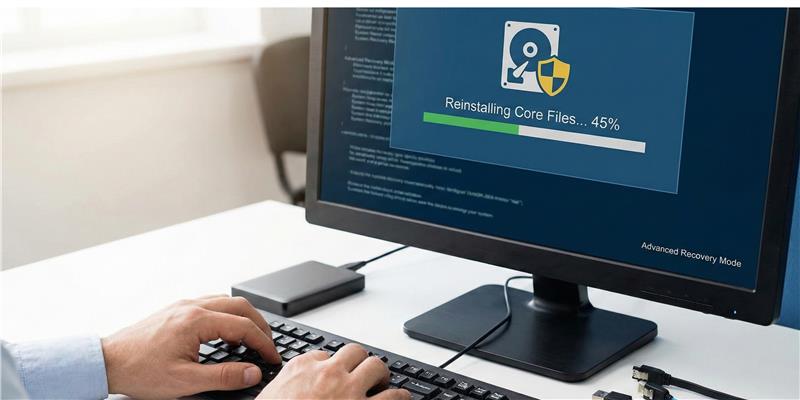
If none of the above solutions work, it is possible that the core software of WordPress itself has become corrupted. This can happen due to a failed update or malicious file injection.
You can replace the core files without affecting your content (your themes, plugins, and images are safe in the wp-content folder). Download the latest version of WordPress from WordPress.org and unzip the file on your computer.
Using FTP, upload the wp-admin and wp-includes folders from the fresh download to your server, overwriting the existing folders. Crucially, do not overwrite the wp-content folder or your wp-config.php file. This process replaces the engine of your website with fresh parts while keeping your custom data intact.
Once your site is back online, prevention becomes the priority. The 500 error is often a symptom of a bloated or poorly maintained environment.
Ensure that your hosting environment is running a recent version of PHP (PHP 8.0 or higher is recommended). Many 500 errors are caused by old code running on outdated server software, or new code conflicting with deprecated PHP versions. Additionally, be ruthless with your plugins. As we always advise our clients at Kleverish, only keep the ones you actually need. Every active plugin adds extra server load and increases the risk of memory exhaustion or conflicts.
Regularly updating WordPress core, themes, and plugins—preferably on a staging site—helps catch issues before they impact your live website. Monitoring server resources, maintaining proper security, and keeping reliable backups in place further reduce the chances of recurring 500 Internal Server Errors and ensure long-term site stability.
The 500 Internal Server Error is intimidating because of its silence, but it is rarely fatal to a website. It is almost always a signal of a conflict or a limit being hit. By approaching the problem logically—checking plugins, verifying server configuration files, and ensuring memory limits are adequate—you can usually resolve the issue within minutes.
Remember that servers are logical systems. They do not break without a reason. Identifying that reason not only fixes your site today but teaches you more about the architecture of your WordPress installation. If you’ve followed these steps and are still facing issues, it might be time to call in a development partner like Kleverish to dig deeper into the server logs.
Reinstall Core: Overwrite wp-admin and wp-includes if files are corrupted.

Pinal Bhalodia is a multi-faceted professional with a diverse skill set spanning creative website design, Google Adwords, Search Engine Optimzation , IT expertise, and sales acumen. With a passion for blending technology with artistic flair, Pinal has carved a niche for himself in the dynamic intersection of these fields.



 Rated 4.99/5 overall
across 100+ reviews
Rated 4.99/5 overall
across 100+ reviews